Osmo Pocket Story Mode

Meet Osmo Pocket ’s Story mode, an amazing feature that allows you to create cinematic short films with a simple tap.
What is Story Mode?
Story mode uses a combination of preset shooting patterns and camera motions to help you create professional-quality video whenever you want. Exclusively designed filters and soundtracks add a unique finish to your footage. The DJI Mimo app is the perfect companion for shooting, editing, and sharing amazing moments.
Highlights of Story Mode
- Create professional-quality videos with preset gimbal movements
Exclusively designed filters and soundtracks add a cinematic touch to your footage, even if you are new to creating videos. Story mode automatically controls camera motions. All you need to do is tap “Start,” and Osmo Pocket will cover the rest.
- Various shooting templates for different occasions
Osmo Pocket story mode comes with several preset shooting patterns so you can select the perfect template to record your best moments.
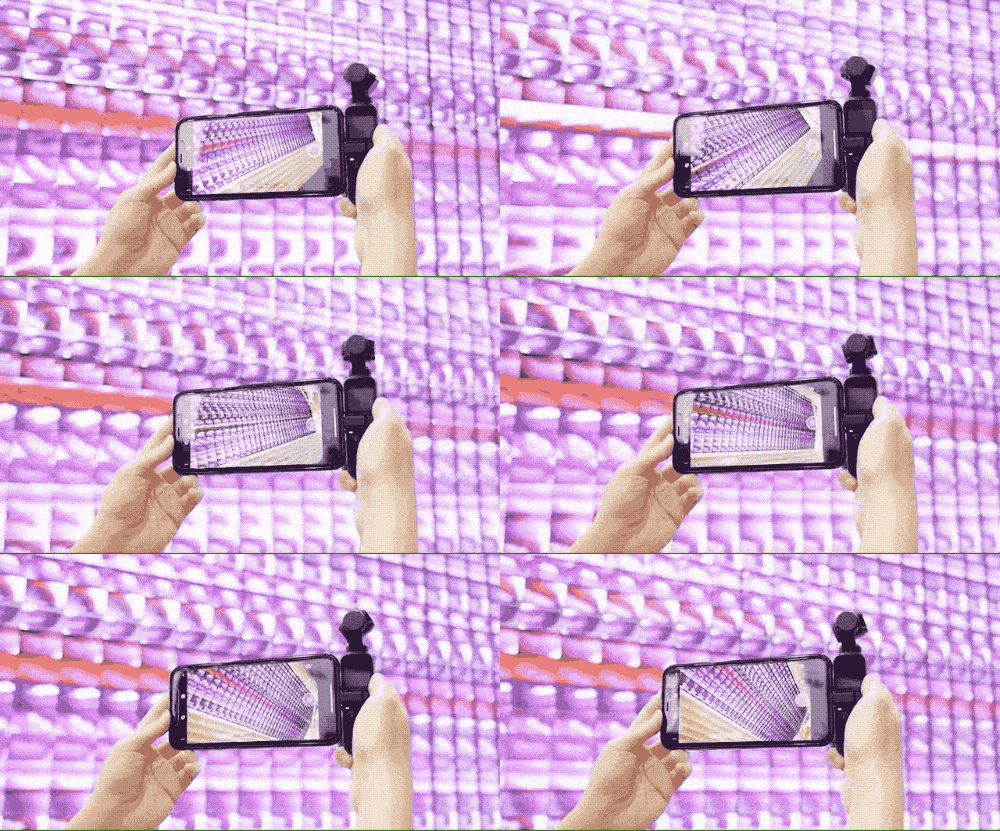
- Capture the entirety of your party with 180 degrees of fun

- An awesome rotating template catches every dynamic movement you have to offer.
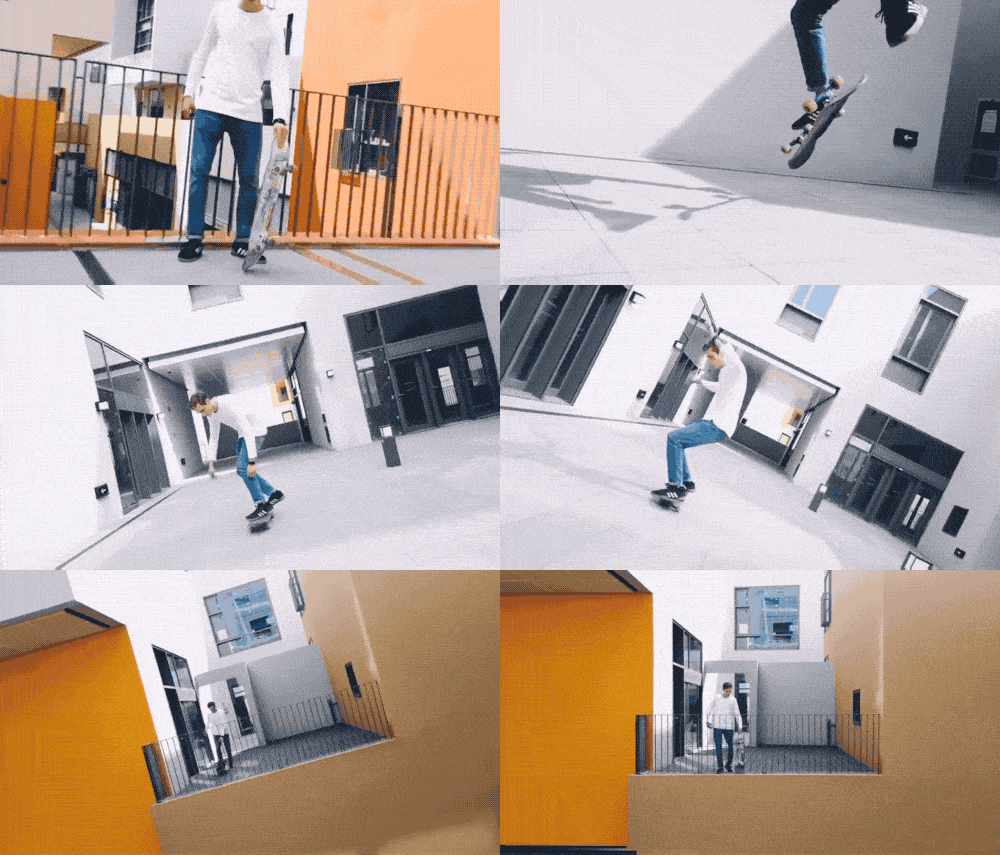
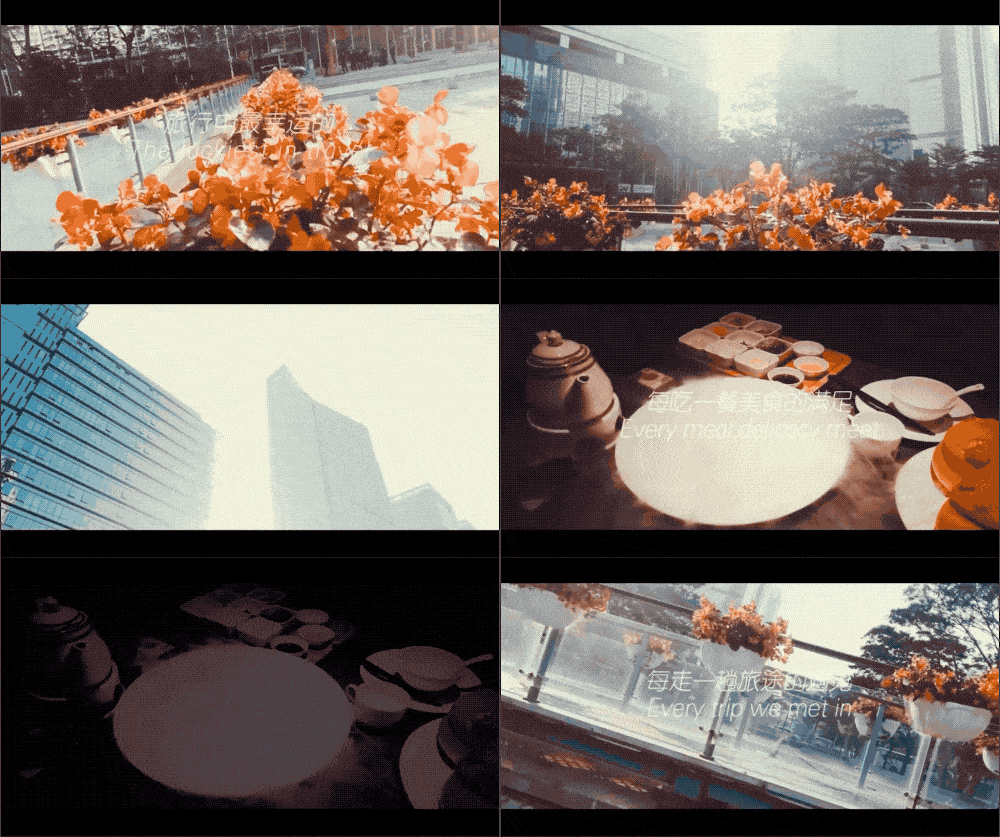
- Turn the scenery during a pleasant stroll into an artistic film.
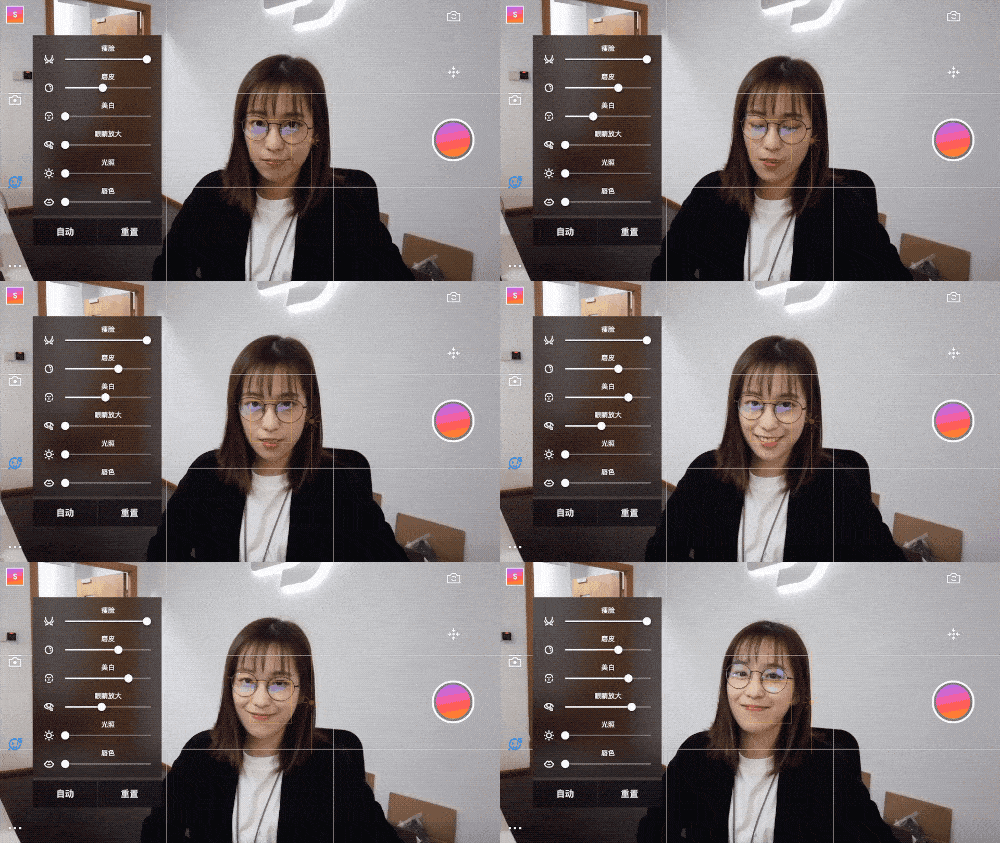
- Glamour Effects make you always look great
Story mode supports automatic retouching and customized parameter settings.
How to Use Story Mode
Before you can use Story mode, update your Osmo Pocket to the latest firmware, and made sure your smartphone has the latest version of DJI Mimo installed.
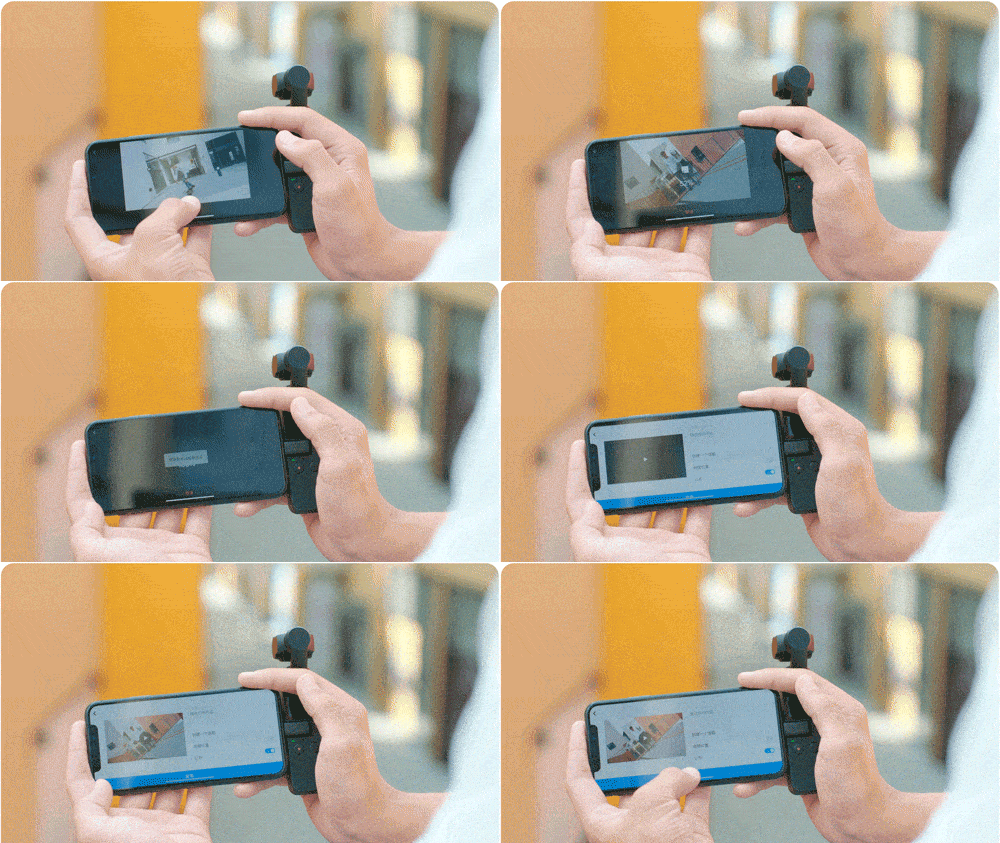
Press and hold the power button to turn on Osmo Pocket.
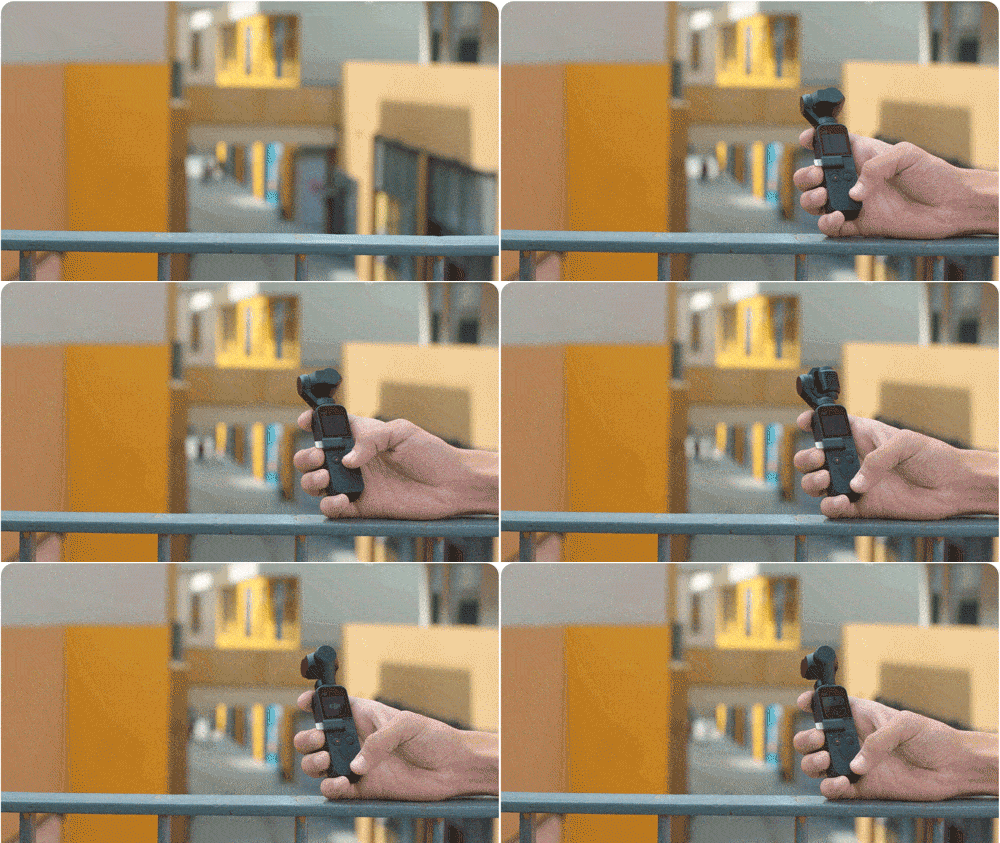
Connect Osmo Pocket to your phone with the smartphone adapter, and the DJI Mimo app will launch automatically.
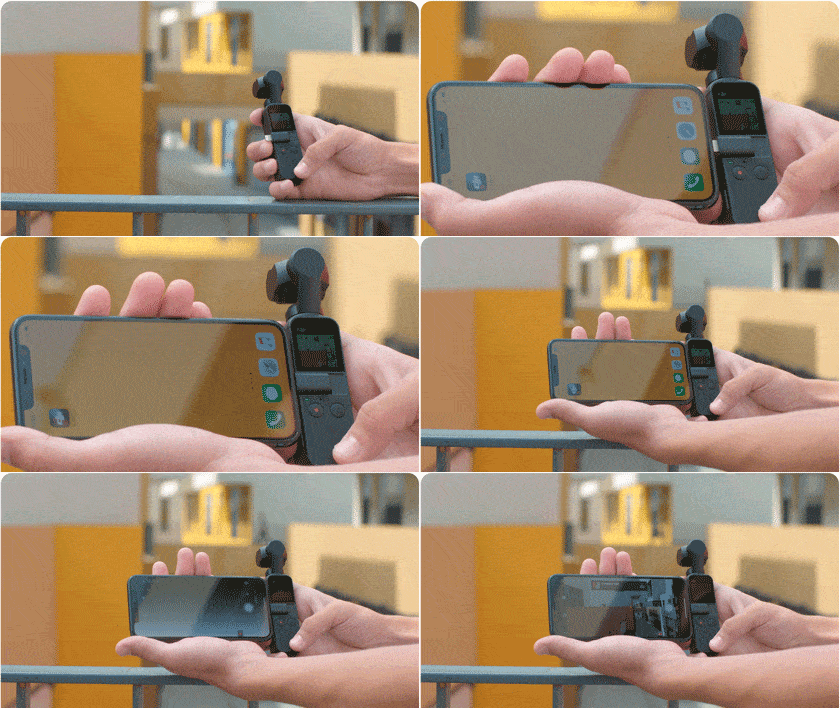
Slide among the shooting modes to select Story mode.
Check out the demo video on the left to see specific shooting details.
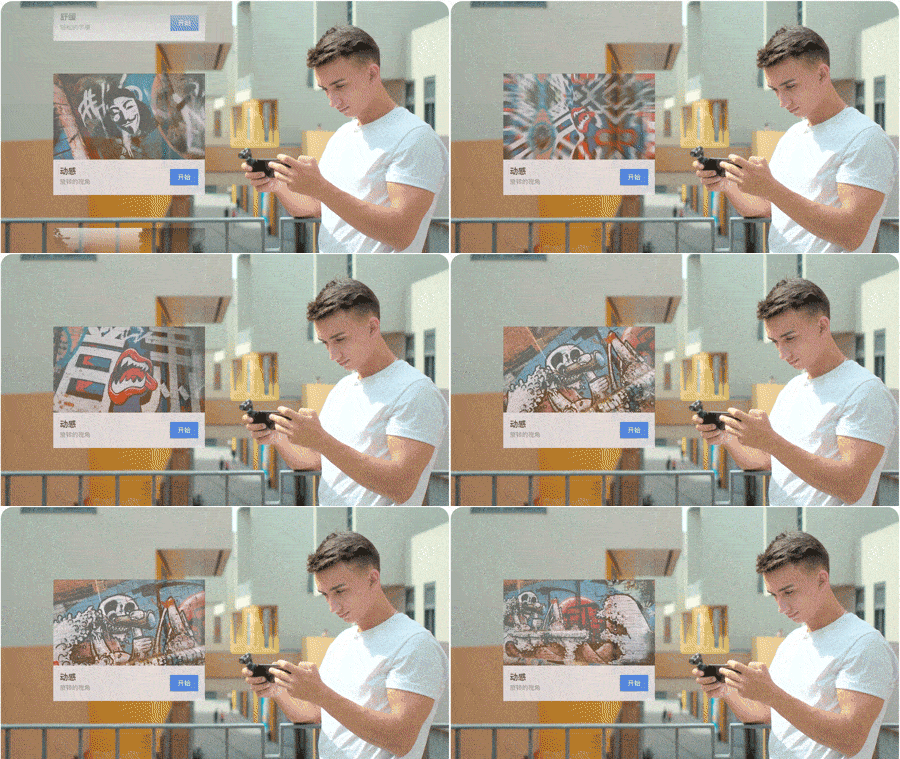
Tap “Start” to enter camera view. Switch between gimbal modes to get diverse camera motions. You can also adjust the beautification parameters with Glamour Effects.
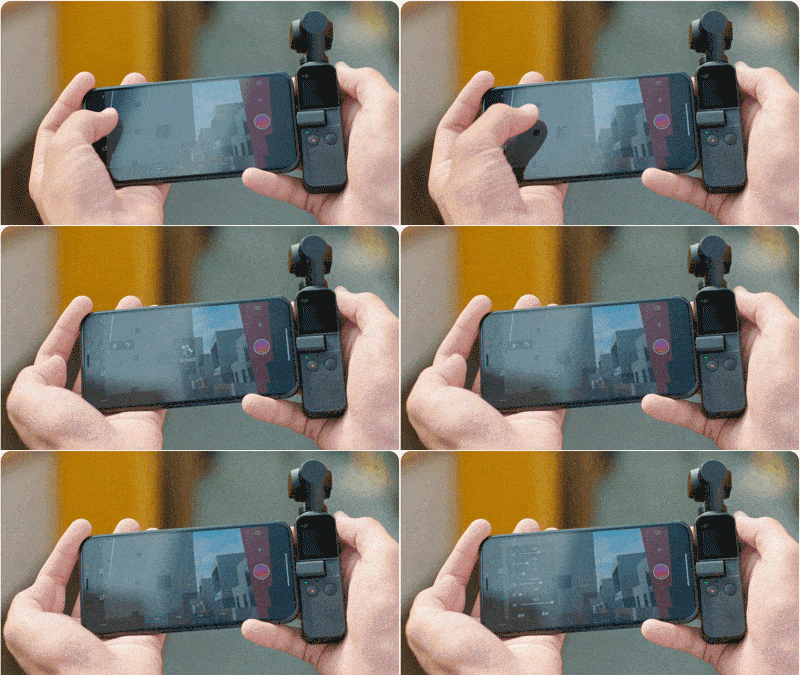
At the bottom, you will see each template consists of several clips. Tap the Record button in Mimo to shoot them one by one.
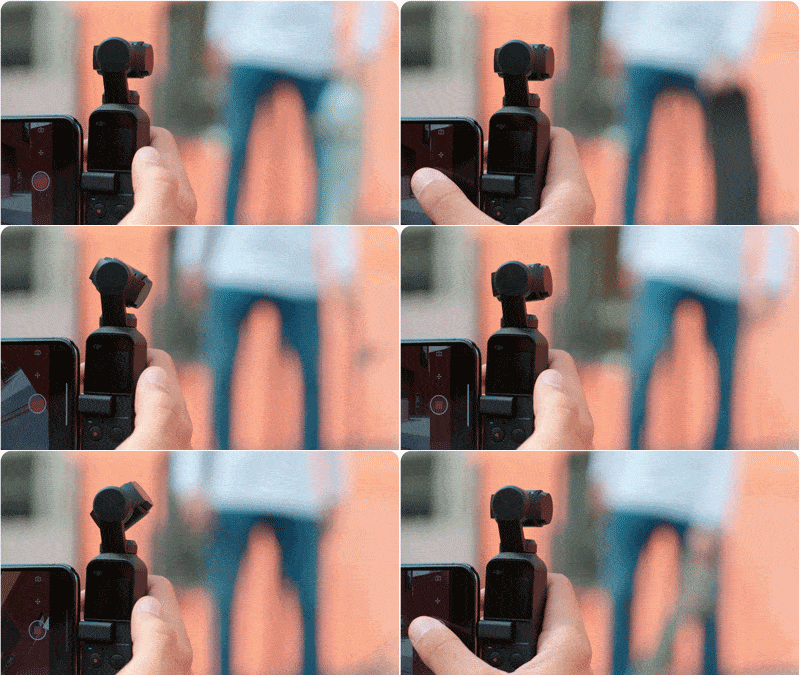
After recording, you can quickly preview or delete the video, and shoot again.
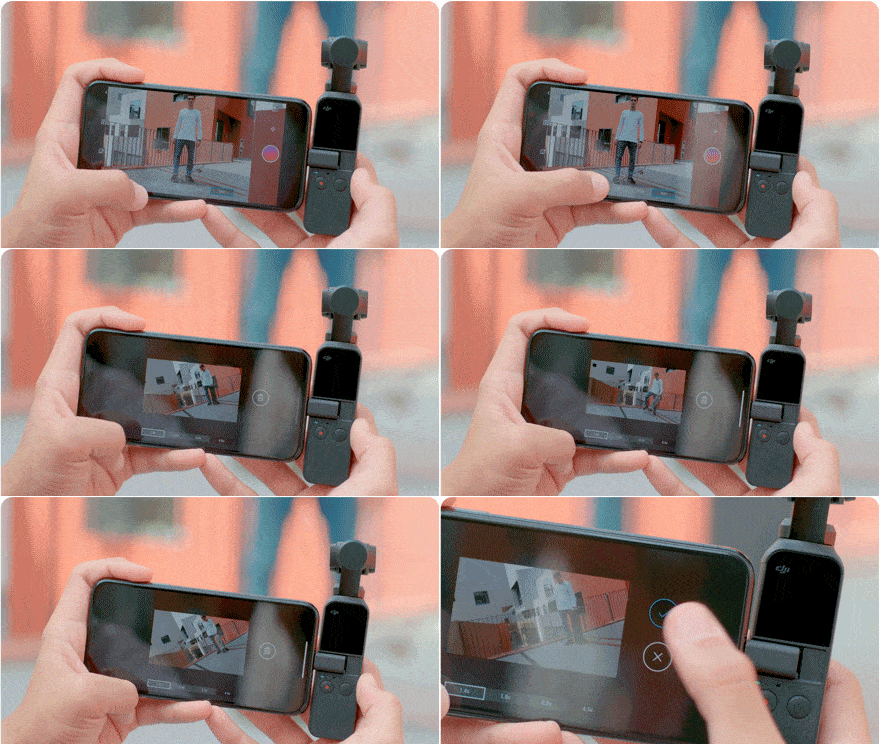
After shooting, a video will be automatically generated in the app. Then you can save it to your phone’s photo album and share it.