


How to Shoot Timelapses Differently with Osmo Pocket

How to Shoot Timelapses Differently with Osmo Pocket
As you shoot timelapses with Osmo Pocket, a few simple settings are all you need to be amazed by time.
Osmo Pocket supports Timelapse and Motionlapse. You can set up your camera in a secure spot and capture movement like the rising or setting sun and people passing by. You can also move and rotate the gimbal smoothly while the camera records, creating a sense of time travel. The following tips will add an extra slice of creativity to your timelapse footage.
Speed Up Time
Time is vital in photography.
Good timing affects how great your timelapse looks.

To shoot a day-to-night timelapse, you need to start from sunset and keep on capturing the scene.
If you only have limited time, there is an easier way to achieve the same effect: mark your shooting location and angle, shoot two short films in both the day and night, and merge them in post-processing.
If you play the footage backward, you will get an effect of time reversal.
Let the Camera Have a Bite
Wouldn’t it be interesting to get footage as if the camera were “eating” your favorite meal?
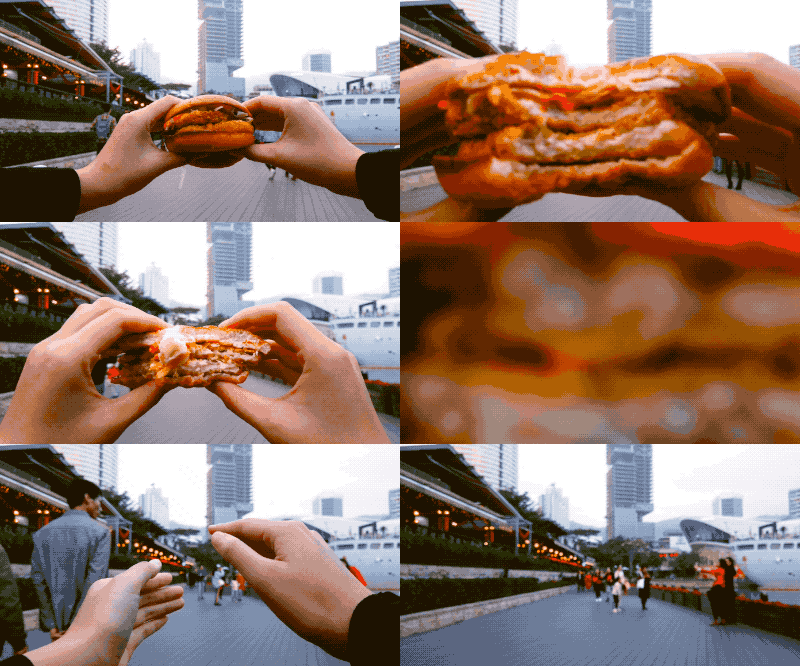
This camera illusion is both fun and easy to create.
- Put your Osmo Pocket on the table, and switch to the Timelapse mode. We suggest you set the interval for three seconds;
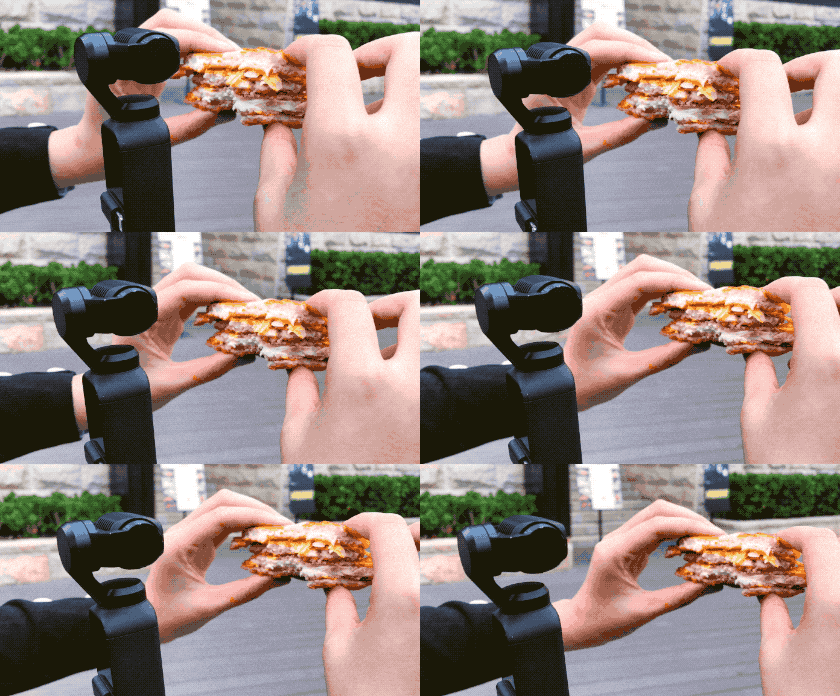
- When the food fully covers the camera’s view, quickly take a bite and put it back to the camera front and continue shooting;
- After shooting, remember to remove any goof shots with a post-processing software or the DJI Mimo app.
Teleport
Even an everyday item like the clock in your home can create the magical effect of teleportation, moving scenes instantly as the clock’s hands rotate.
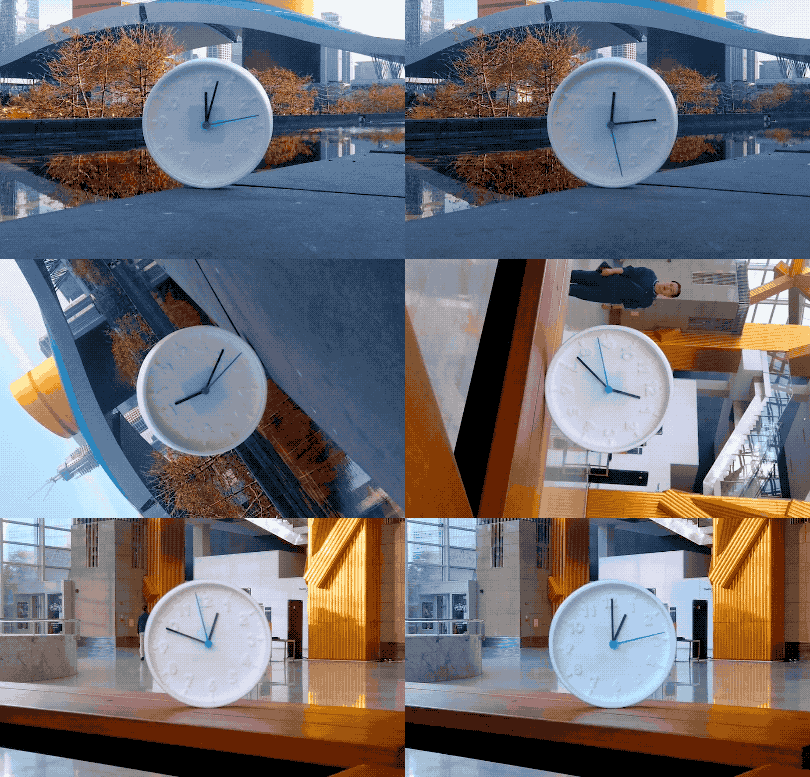
To achieve this, all you need to do is splice two timelapse clips together. Place the clock in two different locations, use Timelapse in Osmo Pocket, and set your shooting intervals. For a stronger teleporting effect, add rotation to the transition in post-processing.
Flip the View
Shoot through a glass ball, and the resulting light refraction will enrich your footage with a reverse image.

As you compose your shot, place the glass ball in front of your subject, adjusting the distance between the two to ensure that the glass ball holds the entire image.

For a stronger teleport effect, add rotation to the transition in post-processing.
Hyperlapse
Besides Timelapse and Motionlapse, you can also unlock the Hyperlapse mode, where you capture a stable timelapse while moving freely.

As you shoot, enable ActiveTrack in Osmo Pocket, mark the subject, and walk slowly to capture the subject. Then, speed up the footage in post-processing, and there you have it!
